![ete-logo-blue-2.png]](https://help.emergenttree.com/hs-fs/hubfs/ete-logo-blue-2.png?height=40&name=ete-logo-blue-2.png)
Quick Links
Reassign a Student to a Different Teacher
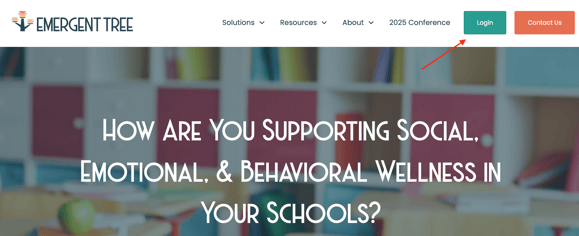
1. In order to login to your account, visit www.emergenttree.com and select the "login" button in the top right corner.
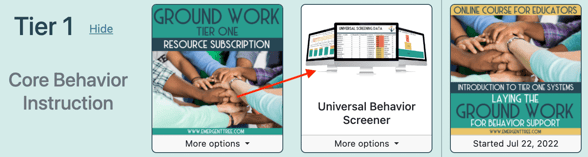
2. Scroll down and select the "Universal Behavior Screener."
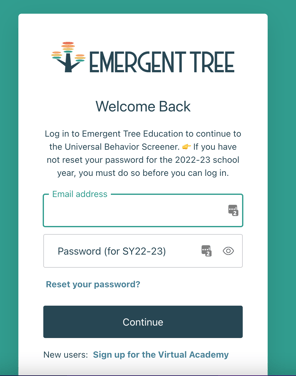
3. Login using the same password used to access any of the Emergent Tree products you have previously used (i.e. Progress Monitor Software or the Virtual Learning Academy).
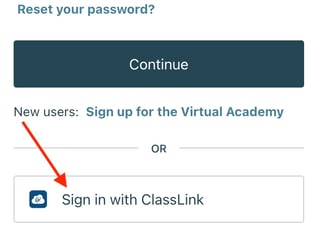
NOTE: if your district has access to ClassLink, you can select the "Sign in with ClassLink" button on this page to access your screener dashboard.
Checking Progress
1.Once you're logged into your screener admin account, you will see your district dashboard.
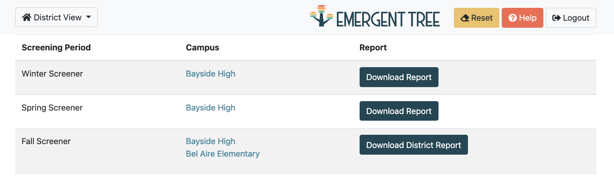
2. Scroll down to select a screening period to view. To the right of the screening period, select the campus you'd like to review.
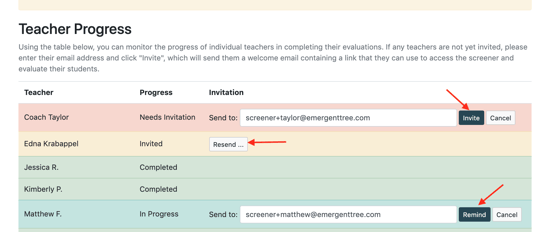
3. You can send a reminder to anyone who has not completed their screener by selecting the "remind" button to the right of a screener's name. This will send an automatic email to them from the screening software.
4. You can resend an invitation to access their screener who has not started screening by selecting the "resend" button to the right of their name.
5. If a screener as not been sent an invitation to screen, their name will be highlighted in red. Select the "invite" button to send the initial email invitation.
Reassign a Student to a Different Teacher
1. While a teacher is screening their students, they may notice a student who is on their list that should not be there. They will select the "this is not my student" button. This student will then be moved to your admin dashboard to be reassigned by you.
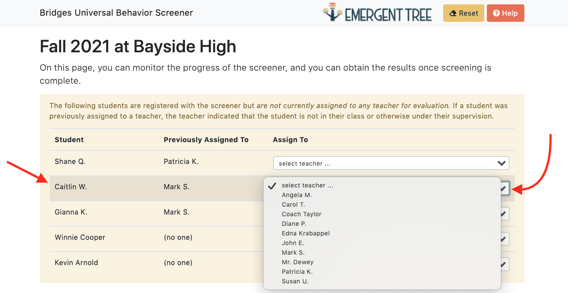
2. Select the drop down box next to the student's name that should be reassigned.
3. Select a teacher to screen the student.
4. The reassigned student will now appear in the newly assigned teacher's list of students to screen.
If the student is no longer on the campus/shouldn't be screened, you can leave them in this section of the dashboard without reassigning them to another teacher.
Download District Screener Results
1. Go to the your district screener dashboard.
2. To the right of the correct screening period, select the "download district report" button.
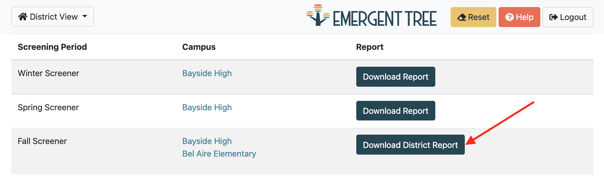
3. The report will immediately begin downloading. You can then save to any place on your own computer.
NOTE: if you need to view previous screener results in the future, you can return back to your district screener dashboard and select the "download district report" button next to any screening period needed.
Click here to find detailed information on how to download and analyze screener data.