![ete-logo-blue-2.png]](https://help.emergenttree.com/hs-fs/hubfs/ete-logo-blue-2.png?height=40&name=ete-logo-blue-2.png)
Quick Links
1. Select the User tab. Select existing user to manage. To add a new user, see “Adding a new user” or complete the upload process.
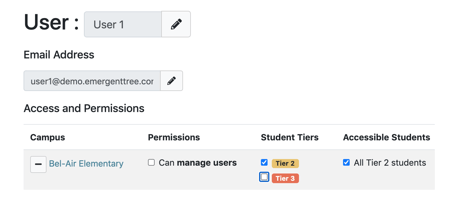
2. Select or deselect the campus, permissions, tiers or students you want to grant access or limit access to.
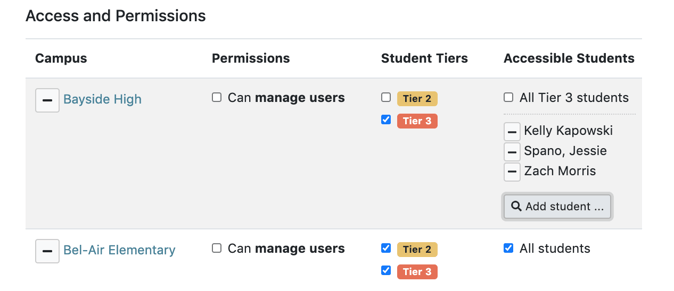
This user...
• has access to two campuses• is NOT a user manager
• access to tier 3 at BHS with three students in the class list
• access to tier 2 and 3 at BES with access to all students
3. Existing students can be added to user class lists by selecting “Add Student.”
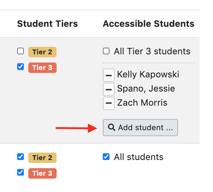
4. Student Tiers must match the students in the User’s class list.
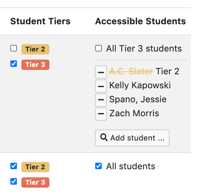
The student A.C. Slater is added to the user class list, but A.C. has a Tier 2 DBRC. The user does not have access to Tier 2 DBRC. To resolve the issue, grant access to Tier 2 to the user.
ADDING NEW USERS
1. Select the “Users” tab.
2. Select “add new…
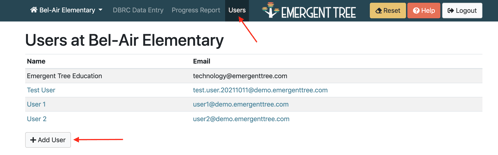
3. Enter the user name and email address. Select “Add User.”
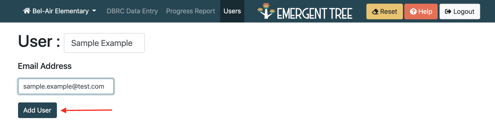
The user below has access to a single campus and and NO User Management access.
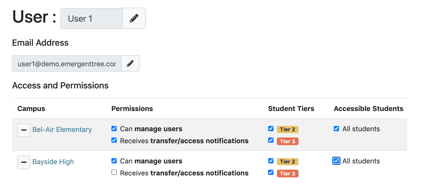
The user below has access to multiple campuses and User Management access.
Quick Tip: when adding new users, refer to the access levels to be sure to allow the correct access. New users will receive an email with their login information.
STUDENT TRANSFERS
User Managers at the campus level can approve transfers. Anyone who has User Manager permissions will receive notification of transfer/ access requests.
User Managers can opt-out of receiving notifications and still remain User Managers. There is an opt-out feature in the email.
Each campus/ district will conduct an annual upload to transfer large student groups from grade to grade and campus to campus. However, from time to time, individual students will transfer from campuses throughout the year.
When attempting to add a new student that already exists at another campus, the user will receive a message “Student ID already exists at X campus."
1. User will initiate request from new campus.
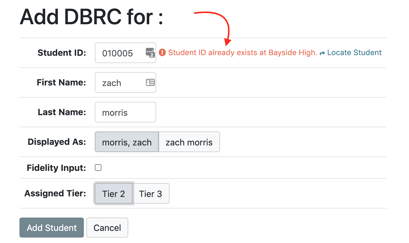
2. Scroll to the bottom of the page and select "request transfer"
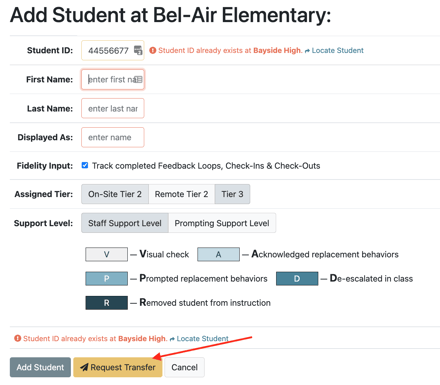
3. A Pending Request is sent to a campus user manager at the previous campus via email. The requesting campus receives notification of Pending Request including who will receive the email request.

4. The Pending Request will display on DBRC Data Entry dashboard until it is approved or denied.

APPROVING TRANSFERS
1. A User Manager receiving transfer request will receive an email to respond to the transfer request. Requests will display on User Manager DBRC Data Entry tab until transfer is approved or declined. Select “Respond” to begin transfer.

User Managers can Approve or Decline a transfer.
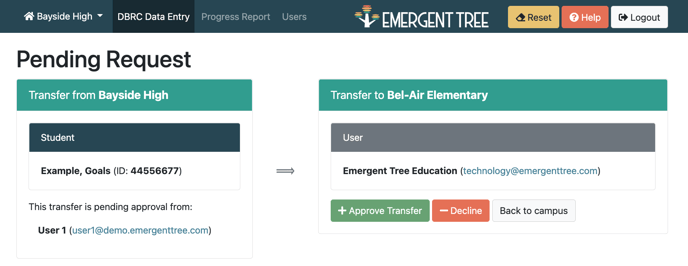
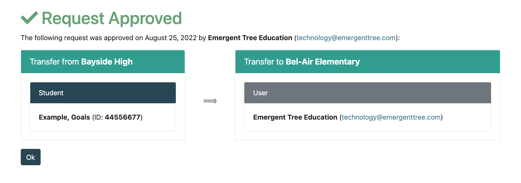
2. Upon completion, User Manager receives a message of request “Approved.” Requesting campus receives notification.
3. If the requesting user lacks the proper access to student’s tier, a second request is generated to either grant access to the tier, switch the student tier or decline the request.