![ete-logo-blue-2.png]](https://help.emergenttree.com/hs-fs/hubfs/ete-logo-blue-2.png?height=40&name=ete-logo-blue-2.png)
Teachers Screen Assigned Students
1. An email is sent to teachers with a link to the web-based screener. The link in the email takes each teacher to a personalized welcome screen.
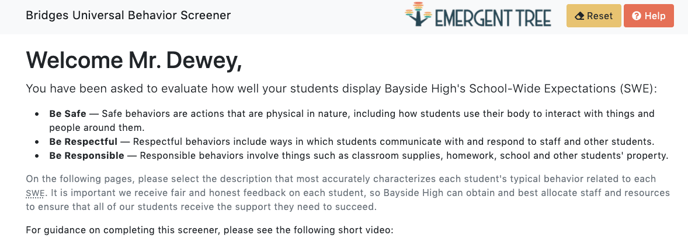

2. When a teacher begins the screener, they will be prompted to evaluate how well each of their assigned student’s displays the SWE of Safe, Respectful and Responsible behaviors.
-If your student is learning on-site, use the "ON-SITE" learning rubric.-If your student is learning remotely, use the "REMOTE" learning rubric.
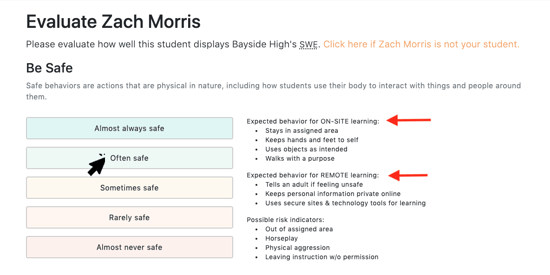
The risk indicators apply to both on-site and remote learning environments.
3. If at any time a teacher needs to stop screening and return to it at a later date, the previously entered info is saved and they can begin where they left off.
4. If a student on the screener list is no longer in the teacher’s class or the teacher is unfamiliar with a student on the list, they can click “xxx is not your student” and the student will be removed from their list. The student will be sent to the admin dashboard to be reassigned.
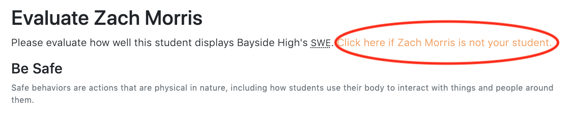
Students who are not reassigned will display as “not evaluated” in the data report.
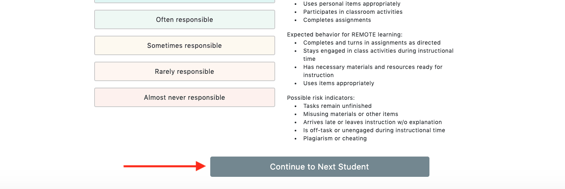
5. When you've completed screening a student, select the "continue to next student" button at the bottom of the page. You'll then be directed to screen another student.
6. For technical support, select the "help" button in the top right corner.