
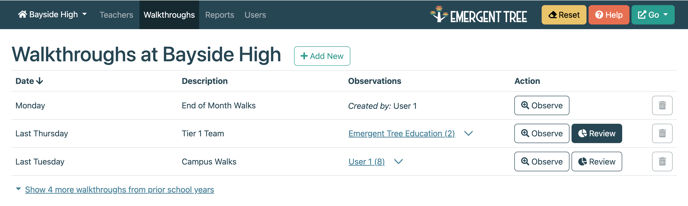
The Classroom Walkthrough provides the ability for any user on the campus to add and conduct a walkthrough on their campus.Users may also contribute to walkthroughs created by other users on the campus.
Quick links
4.Walkthrough-only user access
1.How to access the Walkthrough Feature
- Visit emergenttree.com
- Select the “Login” button
3. Use your Emergent Tree login information to access the "Emergent Tree Portal"
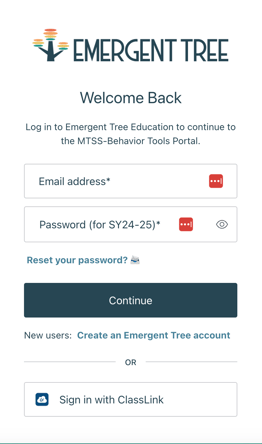
-If your district uses Classlink, select the "sign in with Classlink button" to access the Emergent Tree Portal.
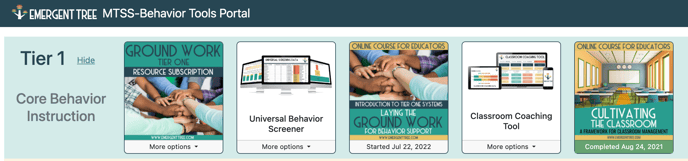
5. Select the "Classroom Coaching Tool" tile to access the tool.
2. Starting a Walkthrough
- Select the “+ Add New” icon to begin a Walkthrough.
2. Enter a description for the “session” at the top of the page, so you are able to recognize the Walkthrough in the future (i.e. date, time, class period…)
- Select the "save" icon to begin the observation at a later date
- Select the “Observe Now" icon to begin the session immediately

3. To begin the observation, select an “instructional activity” based on what is happening in the classroom.
- The running clock includes a progress meter, showing the duration of various activities observed.
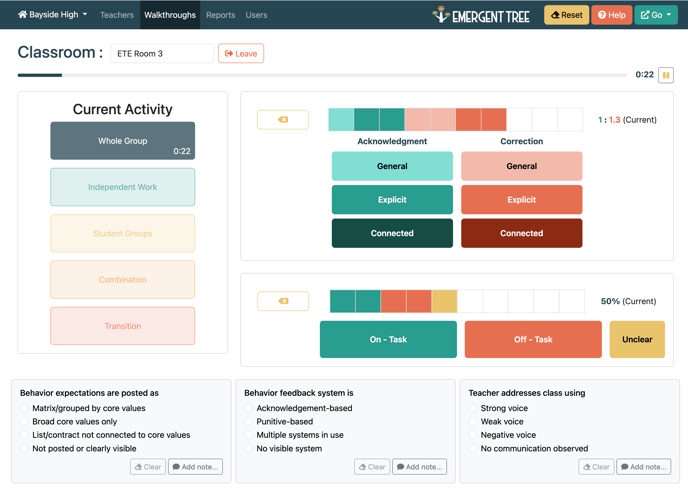
- The timer may be paused temporarily if necessary and then resumed.
4. As the activity continues in the classroom, use the “Acknowledgement, Correction, Expectations” buttons and “Student Engagement” (off task/on task) buttons to log data for the walkthrough.
- Any time an acknowledgment or correction is made, indicate this by selecting the correct button with your mouse throughout the walkthrough.
NOTE: keep in mind, acknowledgements and corrections do not always have to be verbal. If you notice non-verbal feedback, you can select the buttons at this time as well.
- Student Engagement: the software takes a momentary time sample in order to take this data. Use this to look at one student in a moment of instruction and decided “are they on task or off task?” as defined by the student’s expectations and the activity. You can then look to another student and indicate “on task” or “off task. As you survey the classroom take "on-task", "off-task" data. Select the correct button with your mouse. If you selected the wrong icon, you can simply select the "yellow arrow" icon located to the left of the engagement section.
TIP:we recommend going around the classroom at least one time to collect this data. If you plan to get more student engagement, go around the room multiple times to collect this data.
- 5. As you continue the walkthrough, you will also want to capture if behavior expectations are posted (and indicate how they are posted), indicate if there is a behavior feedback system, and listen for teacher voice.
- -You can also add notes under each section to remember or highlight relevant information

TIP: when taking data on feedback systems, and teacher voice, use your mouse to hover over each and you will see a black tip box open that describes each of the choices listed.

6.Once data has been collected, the user may click the red Leave button to exit. If there is any data missing, you will be prompted to confirm you want to leave:
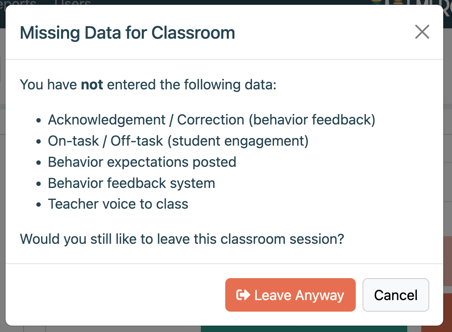
- If the user needs to edit the walkthrough after leaving you can select the pencil icon.

- Clicking the pencil icon will return to the classroom screen where you are able to edit the classroom name, or enter/update your notes or checkbox selections for the classroom. It is NOT possible to change the timeline, engagement, or acknowledgement data after the fact -- if this data is incorrect, then a new observation should be conducted, and the old one can be removed.
TIP:only the user who originally observed the classroom is permitted to view/edit their data in this screen, or to remove the classroom from the walkthrough.
3. Walkthrough Report View
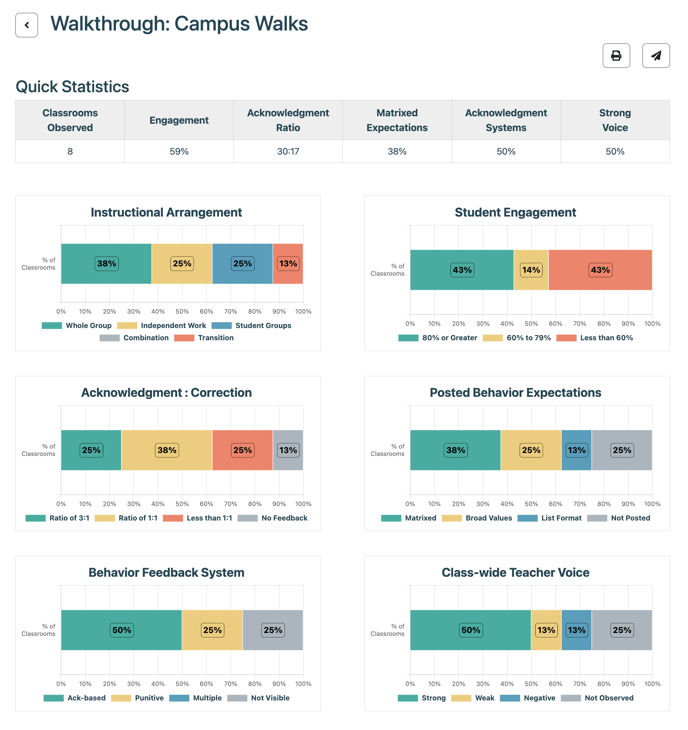
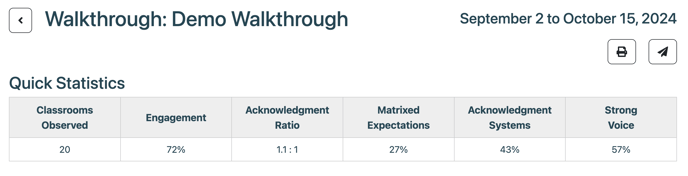
1.Once classroom(s) have been observed, then the data collected is displayed on the report view. At the top, you will find the Quick Statistics along with a set of bar graphs quantifying which classrooms feel into various categories:
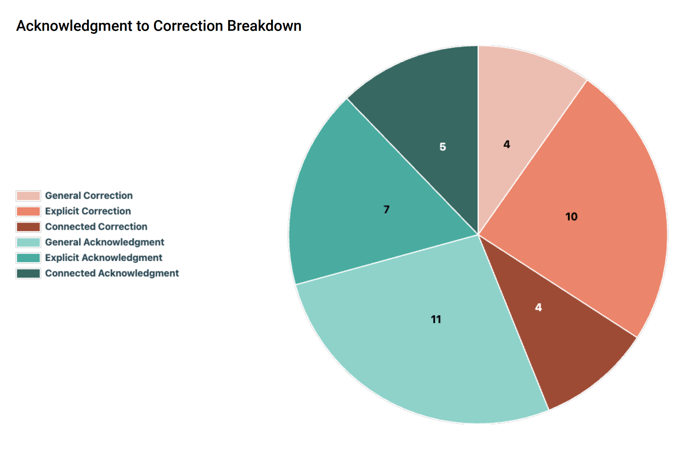
2.There is also an overall Acknowledgment : Correction pie graph.
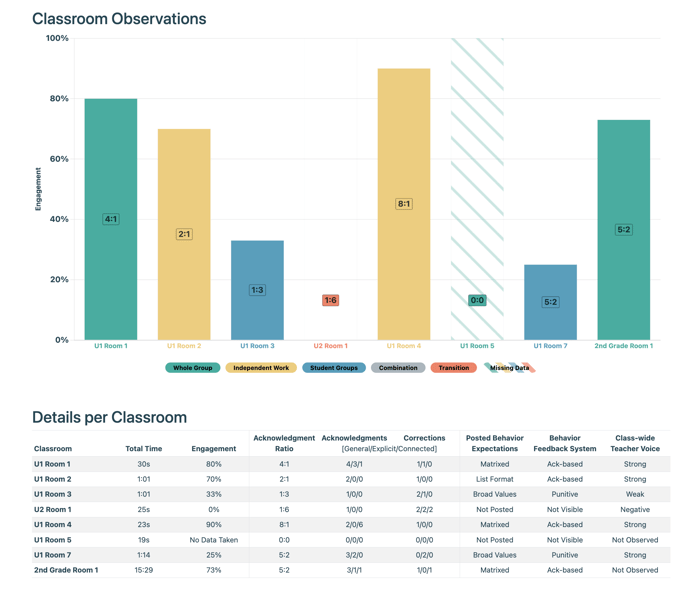
3. Following that, there is an engagement bar chart & detail table that permit comparison of details across classrooms, as well as any detailed notes you may have taken during the observation:
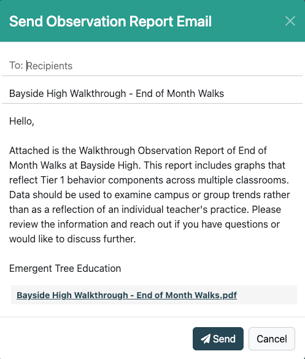
4. The reports can also be printed in a pdf format or emailed using the icons listed below:
4.Walkthrough-only user access
1. There may be some campus staff that only need to participate in campus walkthroughs, and they do not require the ability to observe specific teachers. User accounts for these staff can now be configured with the teacher observation functionality disabled, by unchecking the new "Can conduct teacher observations" button:
.png?width=688&height=106&name=image%20(1).png)
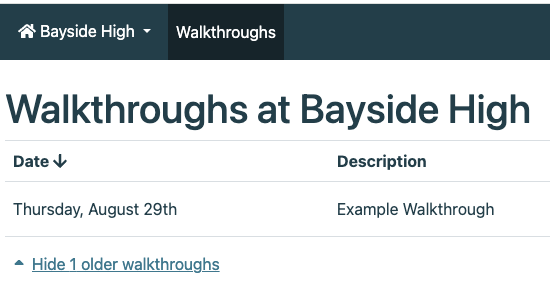
2. When this option is disabled, then the user will see only the "Walkthroughs" tab, and the tool will therefore open to the Walkthroughs tab by default.
NOTE: users can always be granted additional access by selecting their name in the software and giving them the necessary access.