
Below is information on how you can view and share the data from a student's DBRC with parents, administrators, or additional campus/district staff members.
Quick Links
Print/Save a Student's Complete Report
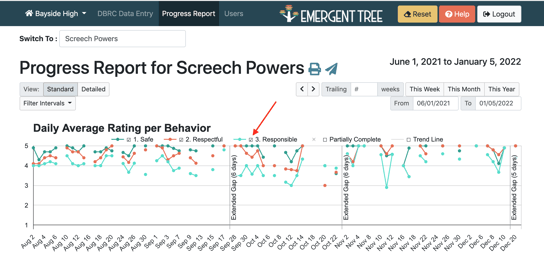
DAILY AVERAGE RATING
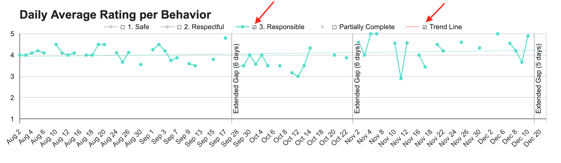
This feature shows skill-acquisition over time using trend lines.
To view a Daily Average Rating for a student, select the Progress Report tab at the top of the dashboard. Next, select the student you wish to view.
Each behavior scale is indicated in a new color. Use the mouse to hoover over dates to see the daily average. Absences are represented by blue star. School Holidays and Extended Gaps (ie., summer break, winter break) are indicated by vertical lines. Dates with Partially Complete data are indicated with a red star.
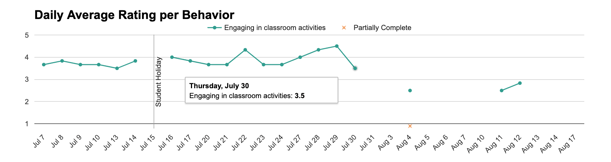
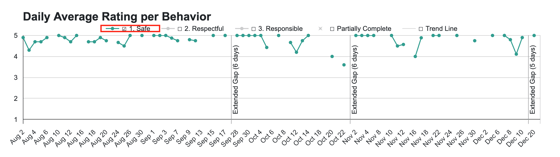
To hide a specific behavior from the student's graph, select the check box next to goal you'd like to hide.
You'll then see the remaining behaviors on the graph.
Selecting the "trend line" box will allow a light gray line to follow the trend of the behavior selected.
If the "partially complete" box is selected, this will show partial data that has been entered for that day, but not all data has been entered for that day.
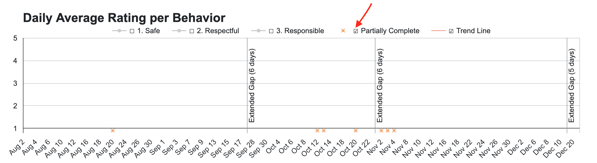
The selections you make on this graph on the progress report page will reflect in the emailed or printed progress report.
To filter the data shown on the Progress Report by reporting interval, select the Filter Intervals drop down menu.
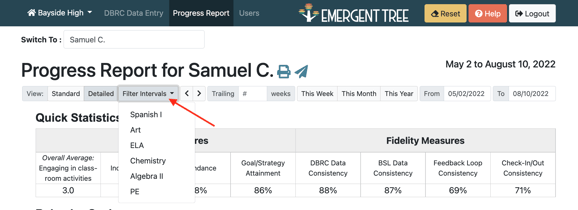
Select the interval from the drop down menu you'd like to view.
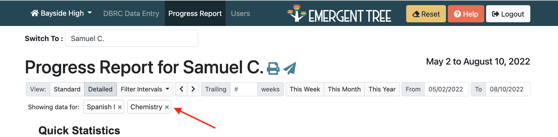
You can select more than one interval to view data from multiple intervals at the same time, but only the ones that are selected.
Once you are done viewing the data from these intervals, select the "x" next to each previously selected interval/s to begin to view data from all intervals once again.
Printing a Student's Blank DBRC
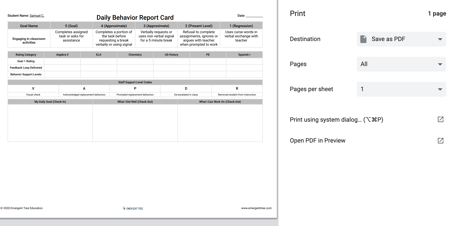
A blank, pre-populated student DBRC can be printed directly from the DBRC dashboard.
1. Select the DBRC Data Entry tab dashboard.
2. Select the printer icon next to the student name.

3. A blank student page will generate to print including student name, scale and intervals.
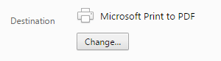
4. Select the printing destination, change settings as needed and select the print button.
EMAIL A PROGRESS REPORT
1. Select the Progress Report tab from the dashboard.
*Make sure to adjust the dates and/or the view (standard or detailed) based on your data needs before continuing to email a selected progress report.
2. Select the (  ) icon to the right of the student's name.
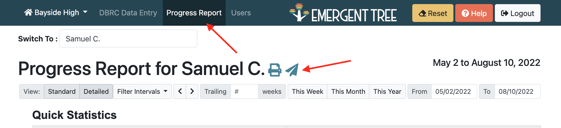
3. Enter the recipients' email/s next to the "To:" line.
*Select Enter to add each email address you wish to add to the "To:" line.
4. When you read to send the progress report, select the "send" button at the bottom of the pop-up box.
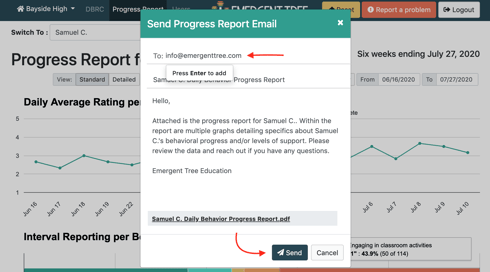
Quick Tip: Any email addresses that have been sent a report in the last 9 months will pre-populate in the "To:" section. To remove them, simply click the "x" next the email address.
PRINT/SAVE A STUDENT'S COMPLETE REPORT
A student Progress Report can be printed or saved to share with stakeholders.
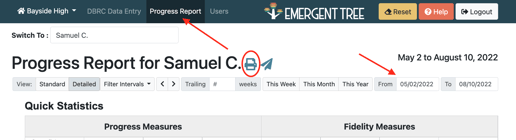
1. Select Progress Report from the dashboard.
2. Select the date range from the calendar. Reports default to current six weeks intervals.
3. Select the printer icon next to the student name.
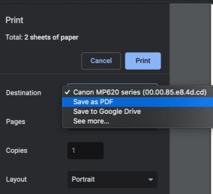
4. To save the report as a PDF, select the “destination” or “printer source”. Select “Save as PDF”. The “Print” option changes to “Save.” After selecting “Save”, you will be prompted to select the folder or location for saving the report. As with all student information, remember to adhere to safeguards required by Family Educational Rights and Privacy Act (FERPA) (20 U.S.C. § 1232g; 34 CFR Part 99).
Emergent Tree Education’s Privacy Policy can be found here.