
- Select the “Reports” tab on your dashboard.
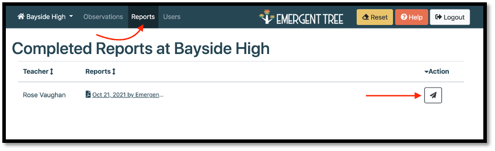
- Find the teacher you wish to view and select the report you want to view and share.
- To email a report, select the “email” button to the right of the teacher’s name.
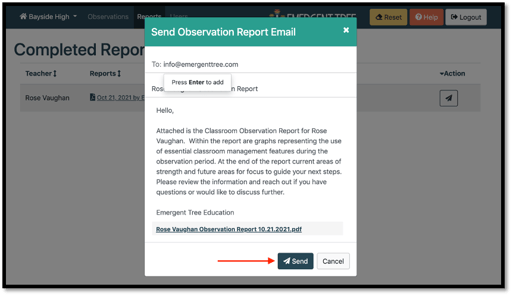
- Next, enter in any and all email address you wish to send the report to.
- Edit the body and subject line of the email, if needed, then select the “send” button on the bottom when you are ready.
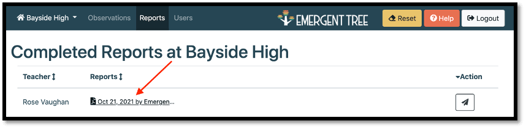
- If you plan to print the report or save it as a pdf on your computer, select the report you want to view.
- The report will then render and allow to make options to print or save as a pdf.
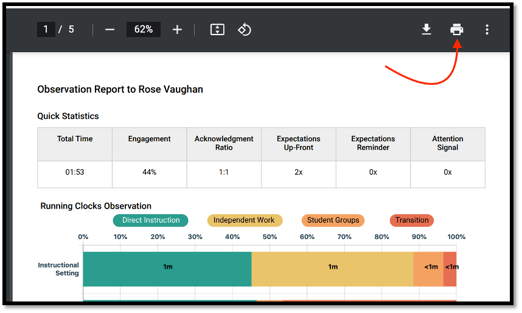
NOTE: if some observation feedback is not included, the empty boxes will not appear in the printed or pdf report.