
Follow the instructions below to complete the rollover of student data from the previous school year to the current school year.
This page explains the process to bulk transfer and/or deactivate students, and update the users who can access them, across multiple campuses in preparation for the beginning of each school year.
This is only necessary if roster integration is not (yet) in place, and if your district has a significant number of students across multiple campuses that need to be transferred.
If your district uses roster integration / ClassLink, or manually disables/transfers students, you do not need to complete this process.
If your district is interested in setting up roster integration instead doing the manual process, email support-hub@emergenttree.com for assistance.
1. Receive the previous school year's Progress Monitor Export CSV document from Emergent Tree.
If you have not received this document and would like to request it, email support-hub@emergenttree.com to request your district's data export.
Once downloaded, you can begin editing this document to reflect the upcoming school year's data.
1. Update the Campus column for each student that is moving to another campus.
2. Remove any User Name/Email of staff that are no longer employed by the district.
3. Update the User Name/Email to the teacher/user that will be monitoring/entering data
for each student.
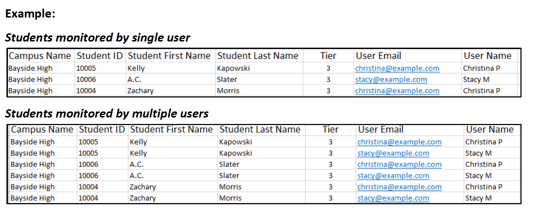
a. If students are managed by a single user, list the User Name/ Email for each
student.
b. If a student will be monitored by multiple users, then duplicate the student
information (columns A-E) across multiple rows so that you can list each User
Name/Email.
c. If a student is no longer monitored by multiple users, then remove any unnecessary
duplicate rows for the student.
4. If applicable, update the Tier column for each student to "2" or "3".
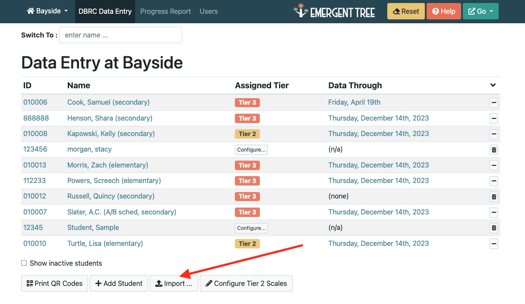
Once all edits are complete on your spreadsheet, select the "import" button on the "DBRC Data Entry" tab in the software:
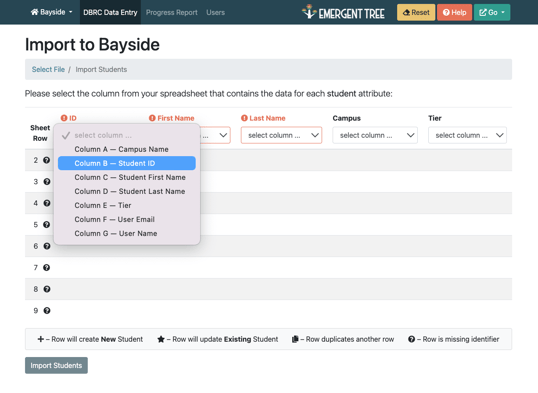
Once imported, you'll then be prompted to "map" the data to the accurate place in the software. Select the correct columns from the drop-down menu for each data point:
If any errors exist on the spreadsheet, you'll be notified on the import, mapping page:
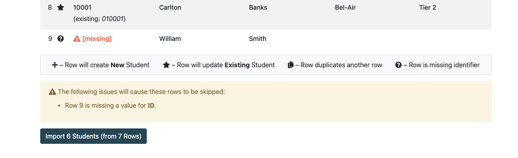
Correct any errors on your spreadsheet, then attempt to re-import the sheet once again.
Once errors are all resolved, select the "import" button at the bottom of the page:

After this point, check the data you've uploaded in the software. If all looks correct, you've successfully completed the rollover process for the upcoming school year.
If you need assistance from an Emergent Tree staff member, click here to schedule a one-on-one meeting.