
Quick Links
QR Code
ENTERING DATA
Note: Data entered is automatically saved as it is entered.
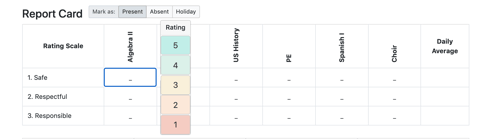
Enter the DBRC rating for each interval.
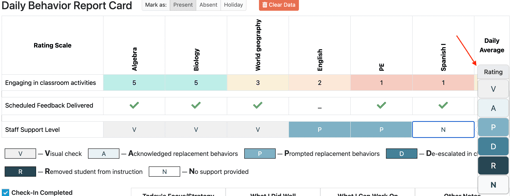
Enter the Behavior Support Levels for each interval (Tier 3 only).
To enter data for a previous date, select the date using the calendar.
Note: when building the DBRC scale, the effective date must include the first date in which you wish to enter data. If the effective date is prior to the first date of data, you will not be able to enter data. Utilizing the “Apply Earlier” button while in edit mode will backdate the data to the start date indicated.
Absences/ School Holidays
- The DBRC will default to “present” allowing staff to enter data for the day.
- If the student is absent and the “absent” indicator is selected, data entering is removed, and a notes box appears allowing the staff to enter notes if necessary.
- If the school has a holiday or special event in which data would not be collected and the “holiday” indicator is selected, data entering is removed, and a notes box appears allowing the staff to enter notes if necessary.
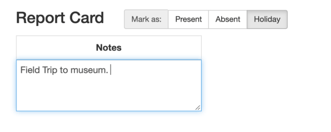
NOTES FEATURE
This feature allows staff to document student daily goal, skill acquisition as well as note changes in setting events that might impact changes in student data. Examples include “sub in math class,” “reported headache at check in,” “arrived late- dr. appt.”
Note: This feature is NOT intended to report specific behaviors as those would be noted in the behavior rating or in ABC data.
Notes DBRC Page

Below is quick view of the "Notes" section when viewed under the Progress Report tab. Select the "detailed" to view the "notes" section on the Progress Report page.


QR Code
We’ve added printable QR codes (unique per student) to permit teachers and other staff to quickly report data at each interval using their mobile device.


-Then tap to enter behavior ratings, as well as fidelity and support level data:

- PM Users can print codes to distribute either individually from the QR code icon:

-Or in bulk for a campus using the button below the student list:

Note: The QR code permits reporting data only for the current school day. Once data is entered for an interval, it can only be changed by an authorized user in the Progress Monitor application.