
Changing a student’s behavior scale is reserved for significant changes to the student’s competing behavior pathway.
EDITING A STUDENT SCALE
When a student is consistently mastering their goals but remains at the tier 3 level of intervention, then rescale the behaviors (edit). When a student is moved to a new level of intervention, ie., from tier 3 to tier 2, create a new behavior scale and archive the previous scale (archive).
ETE recommends changes in the online system are made after the ARD committee has adopted a new pathway.
- Select the student and the DBRC you want to change.
a. Use the pencil to begin “edit” mode. - Use the features to make changes as needed.
a. Ie., changes to the language in the student’s scale (Tier 3)
b. Ie., changes to the frequency of the Reporting Period/ Intervals (Tier 2 & Tier 3)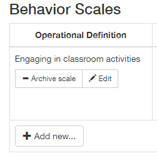
- After you've completed the editing process, use the “apply” to save changes.
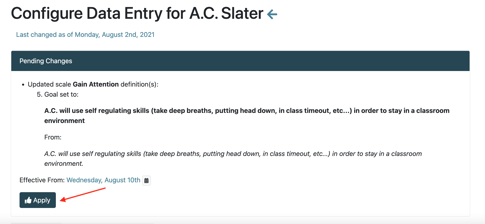
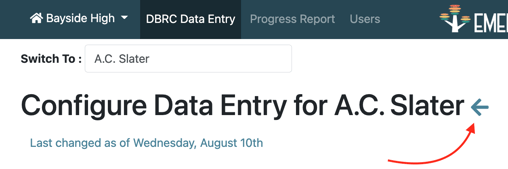
4. Select the blue arrow next to the student's name to return back to the DBRC Data Entry tab.
4. Change Behavior Support Levels to the appropriate level of staff support for each student. The Behavior Support Levels default to the Staff Support Levels.
5. Students needing to be removed from the system, either by making progress and no longer requiring a DBRC or withdrawn from your district, can be deactivated or discarded. This is completed on the DBRC tab.
Student with data will be deactivated using the (-) symbol.
Students with no data will be deleted using the (🗑️) symbol.
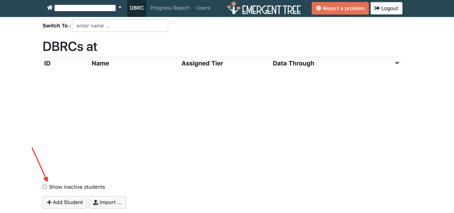
Student can be re-activated at any time. Select “Show inactive students”. Then select the (+) next to the student’s name.
How do I reactivate a student?
How do I edit my campuses Tier 2 scale for ALL students?
Only user managers who have been selected to edit student scales on a campus can edit the Tier 2 scale for a campus.

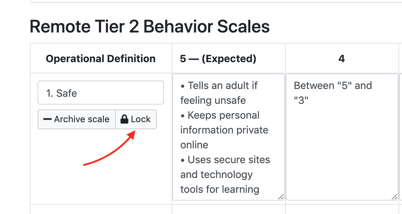
Once you edit these scales, ALL student scales on the campus will now be changed.