
The screener allows campuses to identify students who may need additional supports in the area of behavior. You can access the software by following the instructions below.
Administrator Invites Teachers to Screener
Administrators can invite teachers by clicking the "invite" button next to each teacher's name and email address.
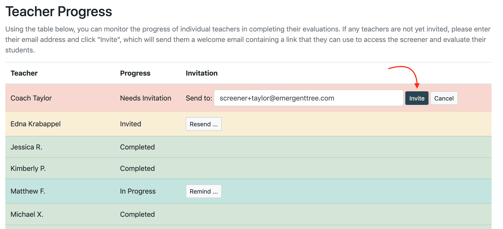
Teachers will not be able to screen their students until they've received the link in the email invitation after you've selected "invite."
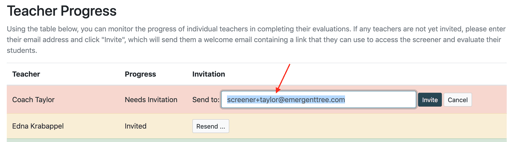
If a teacher’s email is incorrect or a different teacher needs to screen the class, the administrator can update the email address by typing a new email address in the “send to:” box and then clicking invite.
Email Invitation
Once an administrator selects the "invite" button, a teacher will receive an automated email with a link to access the screener software.
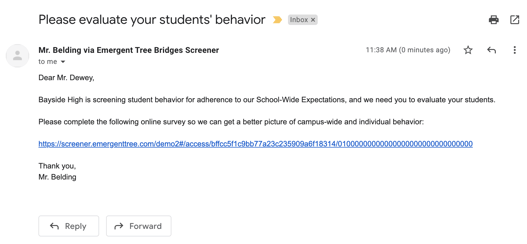
Once the teacher selects the link, they will be sent to the screener software and can begin screening.
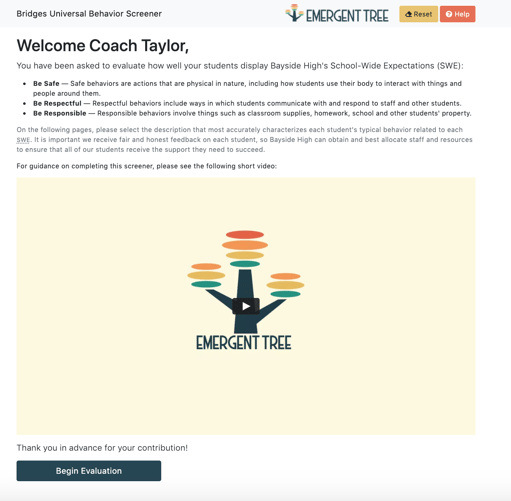
To see detailed instructions on how to screen a student, click here.