![ete-logo-blue-2.png]](https://help.emergenttree.com/hs-fs/hubfs/ete-logo-blue-2.png?height=40&name=ete-logo-blue-2.png)
How does a user access the Progress Monitor Software if they can't find their initial access/invitation email?
The initial access email/invitation may have gone to the user's "spam" or "junk" folder. Please refer the user to this folder. The user also may have accidentally deleted the initial access email/invitation in their email inbox. If this is the case, please refer the user back to the PM software login page. The user can then select "forgot your password?" The user will then receive an email to reset their password and access the software.
Why can't I enter data?
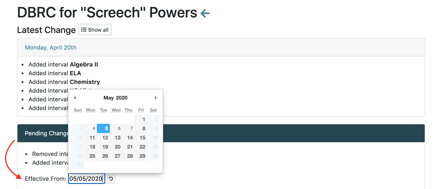
When building the DBRC scale, the effective date must include the first date in which you wish to enter data.
If the effective date is prior to the first date of data, you will not be able to enter data.
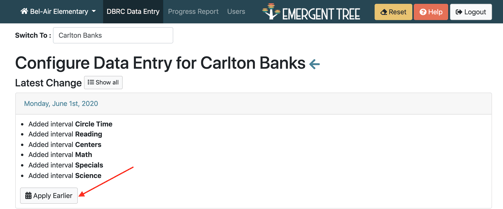
Utilizing the “Apply Earlier” button while in edit mode will backdate the data to the start date indicated.
To enter data for a previous date, select the date using the calendar.
How do I add or remove fidelity measures?
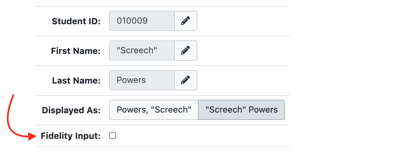
The fidelity input box may not be selected in your student's profile. When activated, the fidelity input allows fidelity of interventions to be monitored and reported.
1. Select the DBRC tab. Select the student you wish to edit.
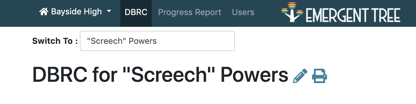
2. Select the pencil icon next to the student's name to begin editing the student's tier status.
3. Select Fidelity Input. If selected, fidelity monitoring features will be activated.
Monitoring Fidelity
The purpose of fidelity monitoring is to ensure student interventions are delivered as intended in addition to data collection. If interventions are not meeting fidelity, the team can brainstorm barriers and provided additional training in target areas. If the interventions are meeting fidelity, the team can develop next steps for building student independence.
How do I transfer a student to a different campus?
What if I receive the message of “Student ID already exists…” but the student is on my current campus?
The student is already on your campus, but you do not have access to the student’s profile. Either, you lack permissions for accessing the student tier or you lack access to the individual student profile. You can begin a Transfer/ Access Request from your local campus User Manager to provide the appropriate access.
When I'm adding/editing a student, I get an error and am unable to apply the changes/add the student...
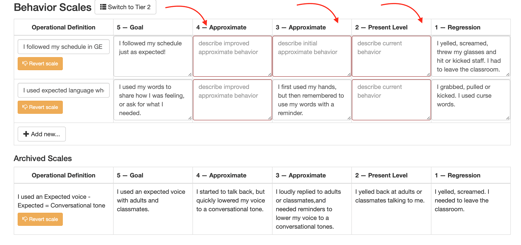
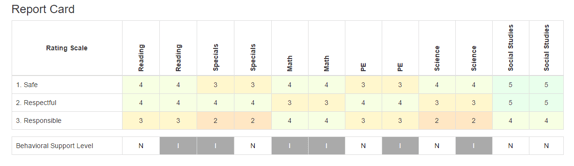
My Reporting Periods and the Behavior Support Levels don’t align.
If you monitor BSL more frequently than provide feedback on the DBRC, you will need to adjust the Reporting Periods. Create intervals based on the frequency of your BSL. The DBRC feedback rating will be repeated for the next Reporting Period. In the example below, the feedback is provided once per instructional period but the student is monitored through BSL twice per instructional period. Therefore, the DBRC rating for that period is entered twice but the BSL is individual based on the support for that reporting period. You may also choose the enter the DBRC rating only once per period.
I don't see any/all of my students on my dashboard...
If the student/s is on your campus, you may lack permissions for accessing the student's tier or you lack access to the individual student profile. Please reach out to the User Manager on your campus/district.
If the student is not currently on your campus, you can begin a Transfer/Access Request from your local campus User Manager to provide the appropriate access.
I tried adding a pathway for an existing student, but received an error message. Why?
You may have data entered on the day you are trying to edit/add the pathway. Save the data in a safe place (i.e. a screenshot, write it down, etc.), then select the "clear data" button. Attempt to convert the scale to a pathway again and you will be successful.
How is the DAILY AVERAGE GRAPH calculated?
1. Each point on the daily average graph includes the mean average of the behavior ratings for that day.
2. An indicator for incomplete data will appear when less than half + 1 ratings are complete. (i.e. out of 7 ratings only 3 were completed.)
How is the INTERVAL GRAPH calculated?
The interval graph shows the percentage of each score broken down across all ratings across the scale. The interval graph uses the same data as the daily average line graph broken up into a different representation. Hovering over the graph will show both the raw number of ratings (i.e. 50 out of 200 ratings) and the total percentage of ratings (i.e. 25%).
How is the SUPPORT LEVELS GRAPH calculated?
The support levels pie graph indicates the percentage of each support provided during each rating period. There are two codes - staff supports or prompting supports.
How is the SUPPORTS SCATTERPLOT calculated?
The scatterplot breaks down the levels of support by each rating period. The scatterplot utilizes the same data at the support levels pie graph broken up into more detail.
What does the QUICK STATISTICS BAR measure?
1. Skills Acquisition - this is the mean average of all the data points in the daily average graph within the date period selected. A box will appear for each behavior goal listed.
2. Independence levels - is calculated using the top two ratings on the support level codes (Staff codes - Visual Check & Acknowledge Replacement Behaviors; Prompting codes - no prompt and verbal)
3. Attendance codes - the percentage of attendance as rated in the progress monitor.
4. Fidelity Codes - each of the codes is calculated as a percentage of the number of times each intervention is recorded in the system.
5. Daily Goal Attainment - this is calculated as a percentage of the number of checks for daily goal attainment.