![ete-logo-blue-2.png]](https://help.emergenttree.com/hs-fs/hubfs/ete-logo-blue-2.png?height=40&name=ete-logo-blue-2.png)
Quick Links
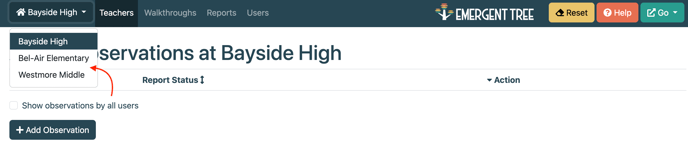
Users with access to multiple campuses should select a campus using the drop-down menu.
-
- add other users
- manage user permissions within the system
- access observations completed by other users: select the “show observations by all users” at the bottom of the “observations” tab to view all.
Users have access and manage only the teachers they will be observing. This allows users to maintain confidentiality.
Teachers do not have access to the software. They can only access their observation report via an email sent directly from the software (sent by the User or User Manager).
Adding a User
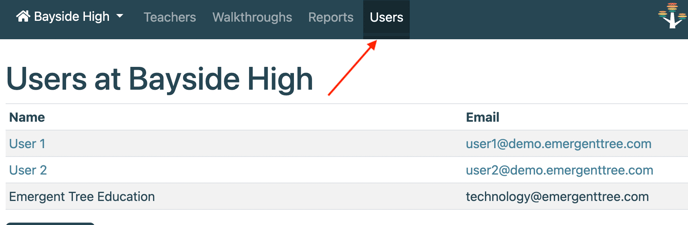
- Select the “Users” tab on the dashboard.
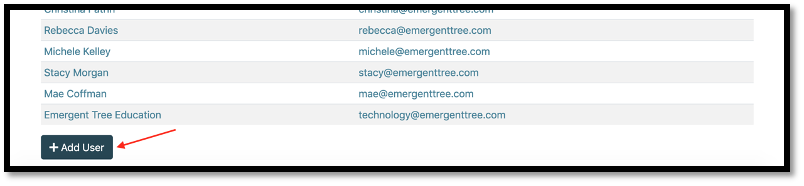
2. Select the “+Add User” button at the bottom of the page.
3. Add the users name and email address.
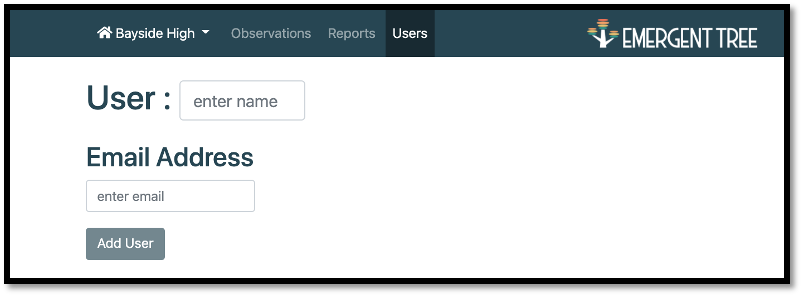
- The new user will now show up under the “users” tab.
- A new user will receive an auto-generated email to let them know they now have access to their account in the Classroom Coaching Tool. They will click on the link in the email, which will take them to their account.
- At this point, the user will create a unique password to use in order to login to the software tool in the future.
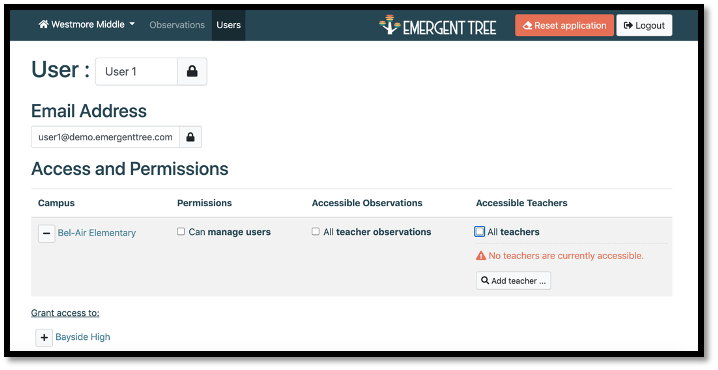
- Select the user's permissions:
5. The “can manage users” box should be selected for users to be able to manage all users on that campus in the Classroom Coaching Tool.
6. Select the “all teacher observations” box if the user should be able to view observations by other users on that campus.
7. Select the “all teachers” box if the user should be able to access every teacher on the campus.
8. If the user should only select certain teachers, select the “add teacher…” box. If the teacher already exists in the tool, you can select the teacher. If the teacher does not exist, you will need to add the teacher under the “Observations” tab.
Adding a Teacher
- Select the “Teachers” tab on the dashboard.
- Select “+Add Teacher” at the bottom of the page.
TIP: if you manage multiple campuses, make sure the correct campus for the teacher you are adding is selected on the dashboard.
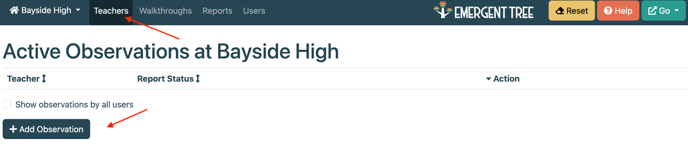
3. Enter the teacher’s name and email address. Then select “+Add Teacher.”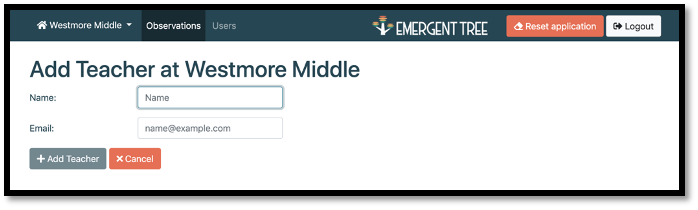
4. The teacher will now show up under the “observations” tab.
NOTE: You can edit a teacher’s name by viewing the teacher list on the dashboard. Simply click on the teacher’s name and a cursor will appear where you can edit the name of the selected teacher.