![ete-logo-blue-2.png]](https://help.emergenttree.com/hs-fs/hubfs/ete-logo-blue-2.png?height=40&name=ete-logo-blue-2.png)
- Access to the Platform
- Log in using district email (Classlink, Google, email account).
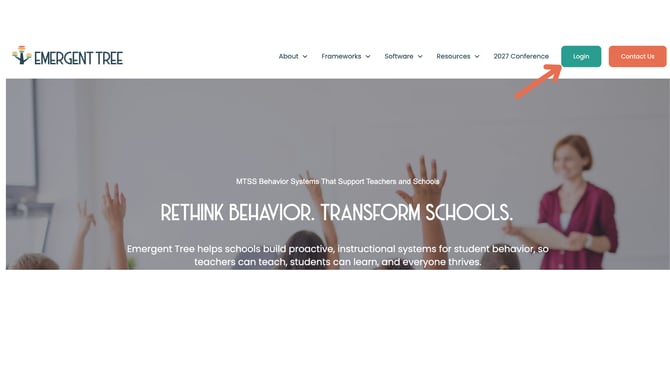
b.Type in the school name, and select to add.
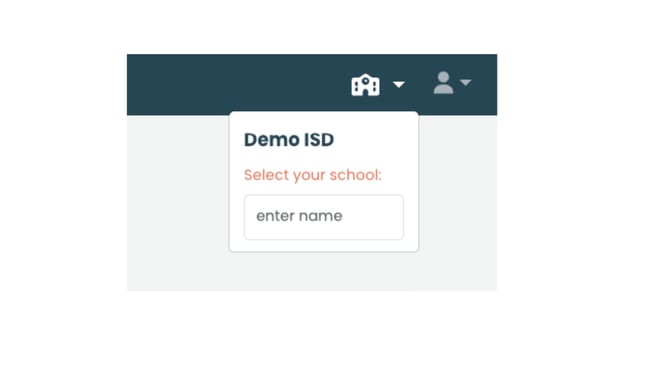
-
- To add a campus user, select the correct campus from the dropdown (first time users may be required to add their campus--please reference the screenshot in the first step above).
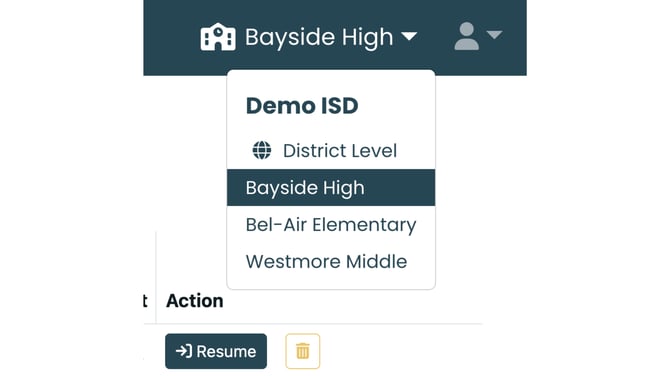
- To add a campus user, select the correct campus from the dropdown (first time users may be required to add their campus--please reference the screenshot in the first step above).
b. Select the desired tier (tier 1, 2, 3).
c. Under the Implement section of the dropdown menu, select Campus Portfolio.
d. Navigate to the user icon in the top right corner.
e. Select Manage Users
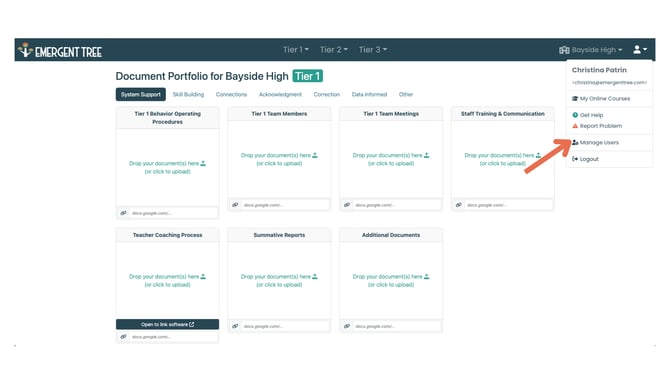
f. To add the user, in the personnel field that best describes their role, click the field and type in their name. Press Enter.
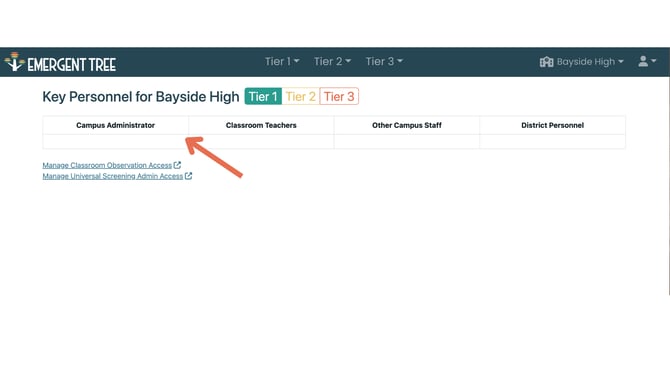
g. To grant access, select their name. Enter their email address and primary role/title. Click Save.
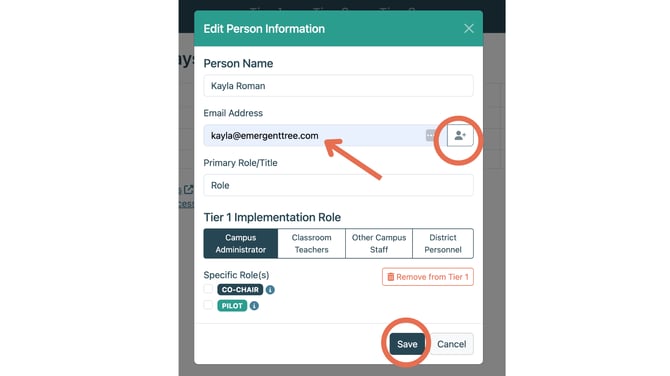
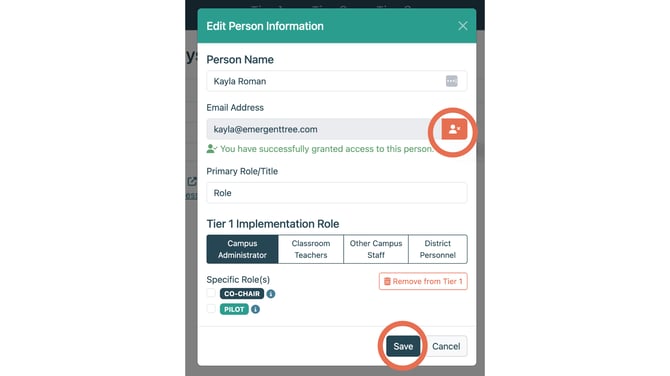
h. Select their name. Beside their name, select the user icon to grant access to the Implementation tools (there will be a green access granted message indicating access has been granted).
Please watch this video for a complete step by step walkthrough of adding campus personnel to the platform.
Manage User Access: Click here for a printable list of steps.